History Reports
History reports consist of both the Summary and Detail reports. Click the History dropdown to access History reports.
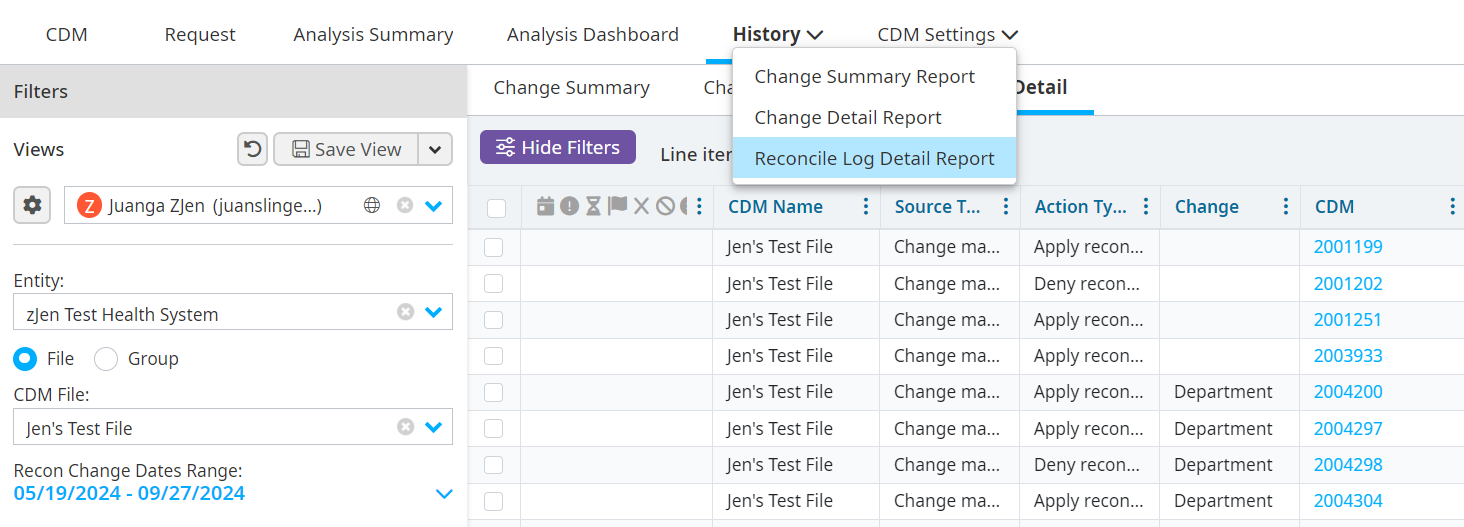
Change Summary report
This report displays one line for each CDM item that has at least one change or comment for the date range selected. Highlighting the changed values only shows the most recent changes in the date range.
Change Detail report
This report shows each time a line item is updated through the edit panel or the request approval process. New line items are added to the Change History report. This enables a review of each edit with a date/time stamp and the user ID of the person who made the change.
Reconciliation Log Detail report
This report shows historical details about reconcile changes that were either rejected at the cell level or denied at the row level.
Saved views for History reports
You have the option to save the view for History reports.
Save a view
Do the following to save view:
Click the Save View button on the Filters pane
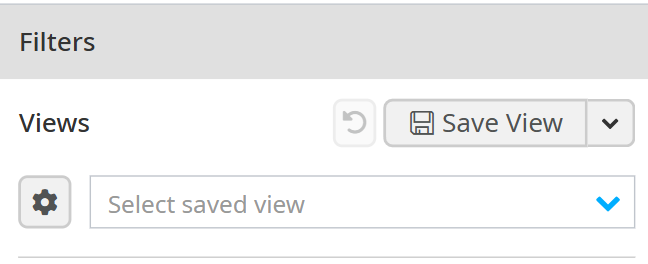
Enter the name of the view you're saving.

Select the Filter and/or Column checkbox for the View Type.
Do the following if you select Filter as the View Type:
Select Set as my Default view, if needed.
Select your preferred date range. If you select the following options when you save or update a saved view's filter selections, the saved view automatically opens with the selected Date Range applied:
- Current Filter
- Yesterday
- Week to Date
- Last Complete Calendar Week
- Month to Date
- List Complete Calendar Month
Note
The Date Range checkboxes only appear if you select Filters as the View Type.
Select if you want the view to be Public or Private.
Click Create View.
View all saved views
Do one of the following on the Filters pane view all saved views:
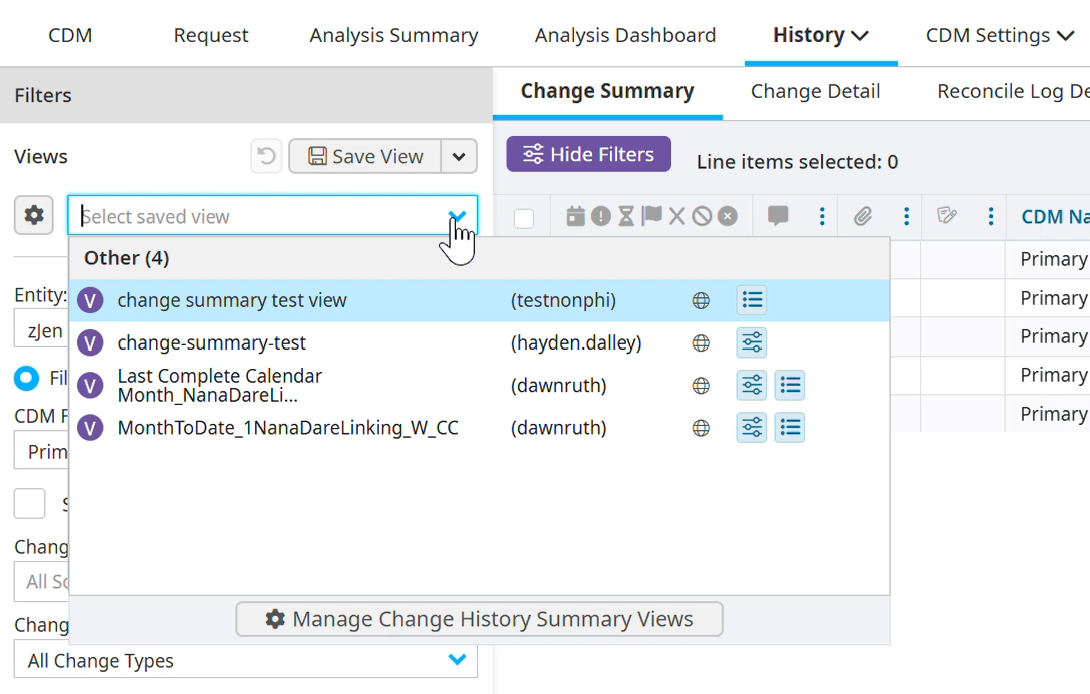
Click the Select a saved view caret icon, then click the Manage [insert report title] Views.
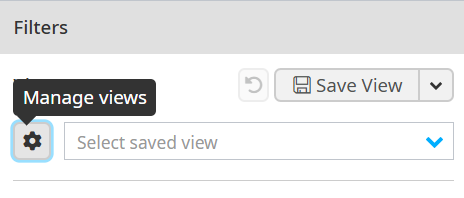
Click the cog icon (Manage views) to open the Manage [insert report title] Views popup.
Edit a saved view
Do the following to update a saved view:
Click the cog icon (Manage views) or the Select a saved view caret icon to view a list of saved views.
Select your saved view.
Update the view.