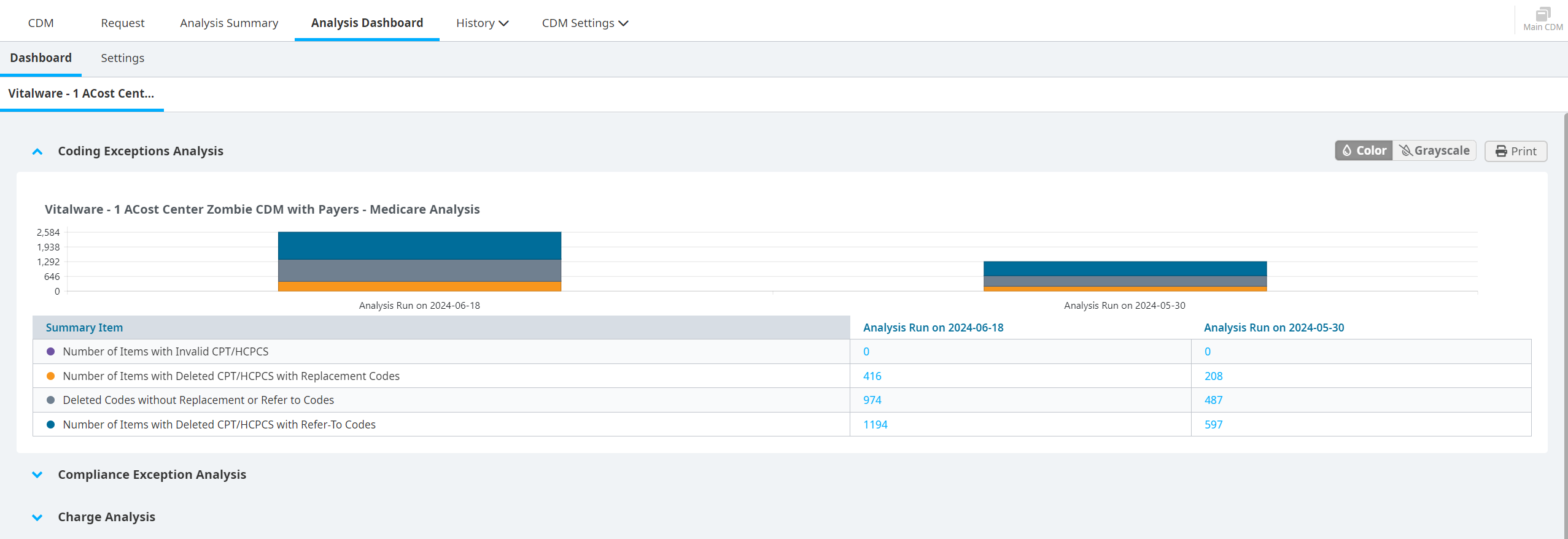
Managing the Analysis Dashboard
You can leverage your existing analyses to customize the Analysis Dashboard, creating views of selected charts, graphs, and related details. By default, the Dashboard tab is blank until you configure your personal settings.
Select the Analysis Dashboard tab.
Select the Settings tab.
Select the Entity, CDM File, and Analysis.
Click Add to List.
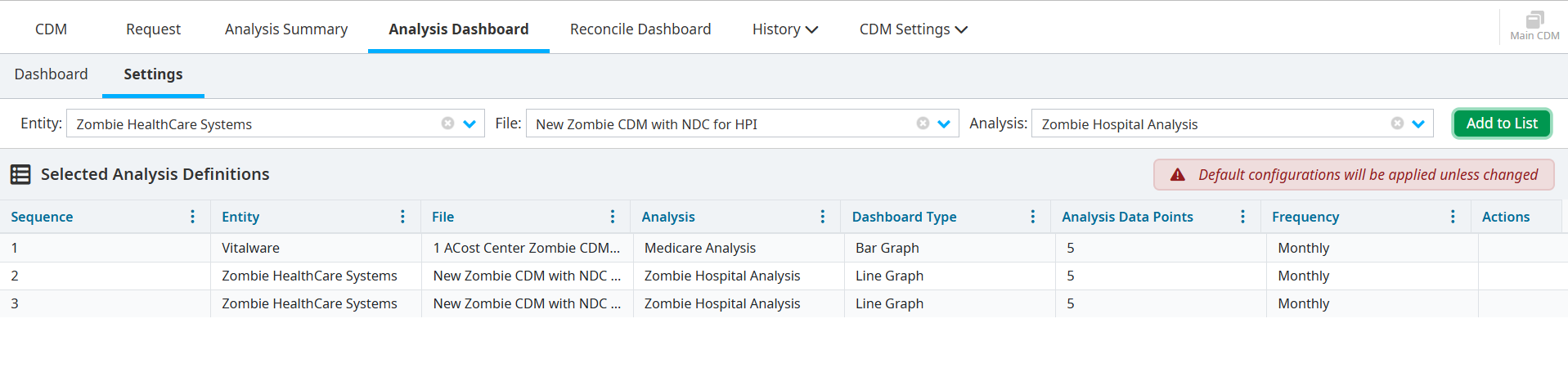
Select an analysis on the Select Definitions list.
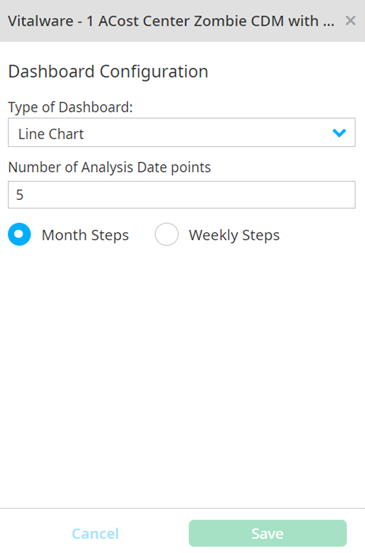
Adjust the settings on the Dashboard Configuration pane.
- Select a Line Chart or Bar Chart.
- Select Month Steps or Weekly Steps to determine how many date points you want to view.
Click Apply to Dashboard on the lower right side of the screen after you configure your analyses.
View each separate analysis configuration in the Dashboard tab.
Select the caret icons to collapse or expand each section of the Dashboard tab.