Managing Department Access
CDM admin users can manage and set department access. To request additional access, contact your assigned Vitalware account manager or your organization's designated Vitalware administrator.
VitalCDM users who are assigned to specific departments only see those departments when searching. If they have workflow access, they can only view departments that are available within the workflow.
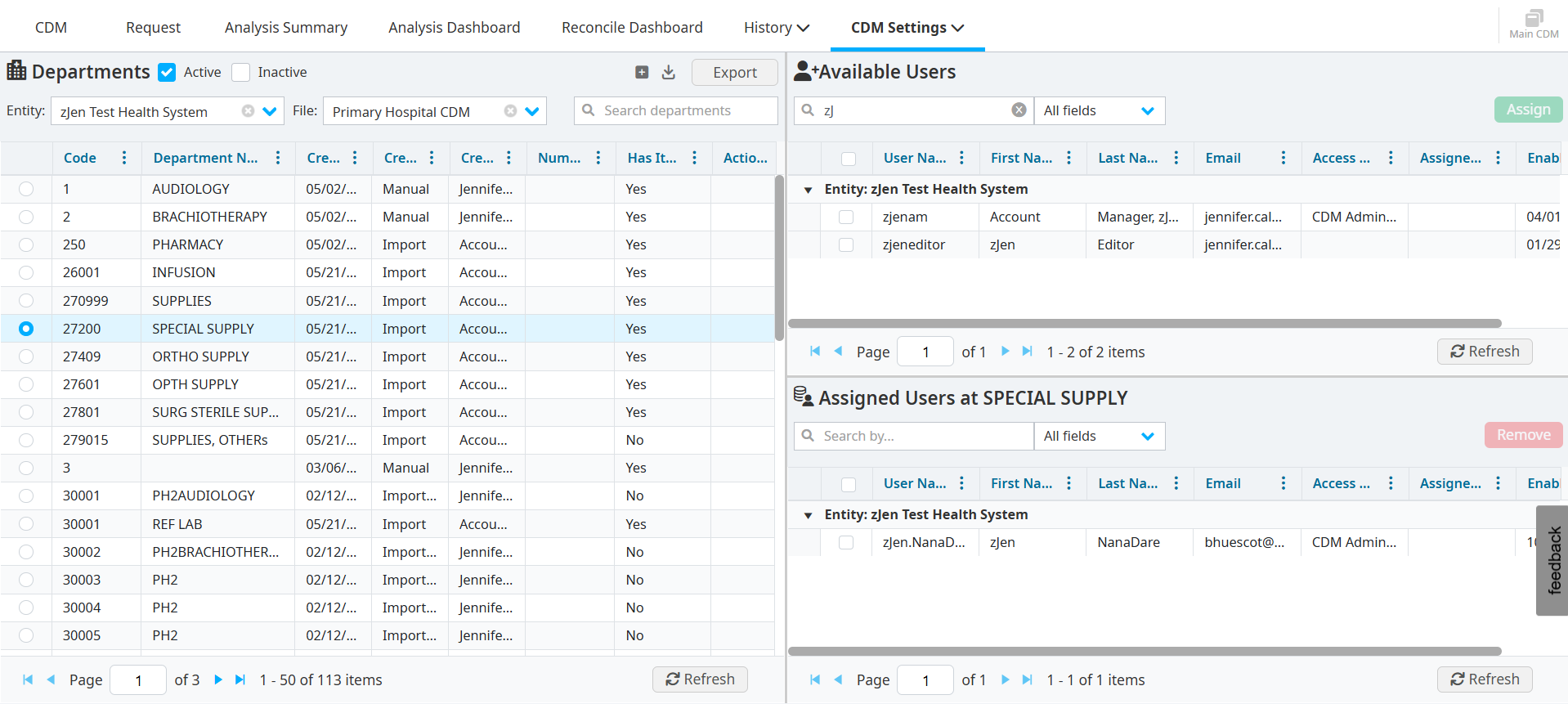
Viewing assigned department access
The Departments section on the left displays a list of all departments and the number of assigned users. Blank fields in the Number of Users column indicate that no restricted access has been set for the department.
Click a department to view the list of assigned users in the Assigned Users section.
Assigning department access
Select CDM Settings > Manage Departments.
Select the Entity and CDM File in the header to set and manage department access.
Select a department.
Select the users you want to assign to the department from the Available Users section.
Click Assign. The # Assigned column automatically updates as new users are assigned to a department.
Removing assigned department access
To remove users from a department:
Select the department in the Departments section.
Select the users from the Assigned Users section.
Click Remove.