Customizing Your Table View
You can customize your tables by moving columns or sorting column data. The columns on the Case Results table can be hidden or used to group the table. The columns in the Charges section of the Case Details table can also be grouped by data.
Your table customizations are retained when you move back and forth between screens and when you sign in and out of VitalIntegrity.
Sorting table columns
Click on the title of a column to sort them in your tables. There are arrows shown next to the title of the column that indicate if the cases are ascending or descending.
You can remove column sorting by clicking the tab with the title of the column until the arrow disappears.
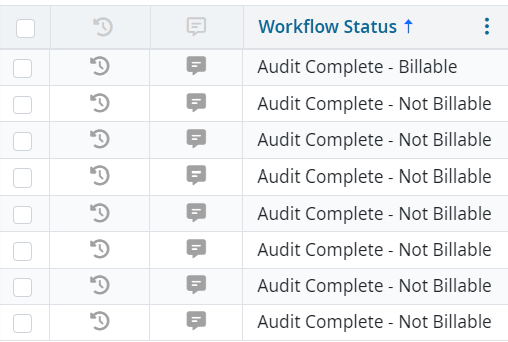
Table columns may have default sorting applied when you open a table. You can change or remove the sorting as needed. Additionally, sorting a column organizes all results across every page.
Moving table columns
To move columns on a table, pick up and drag the column title to a new location in the table header row.
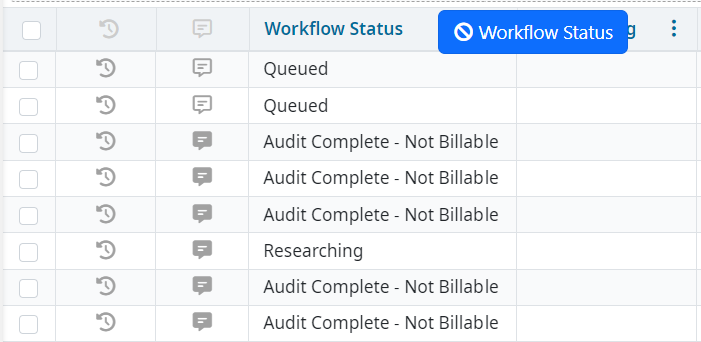
Hiding table columns
To hide table columns:
Click the three dots next to the title of the column title of the column you want to hide.
Select Columns from the list.
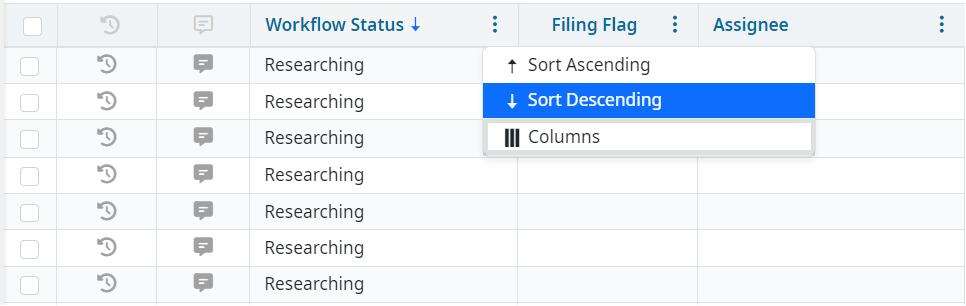
Click Undo in the dropdown list to recheck all columns, if needed.
Note
The ability to hide columns on the Case Details table is only available in the OPPS section.
Grouping by table columns
To group by table columns:
- Drag one or more column titles into the space in the header that says Drag and drop a column header here to group by that column.
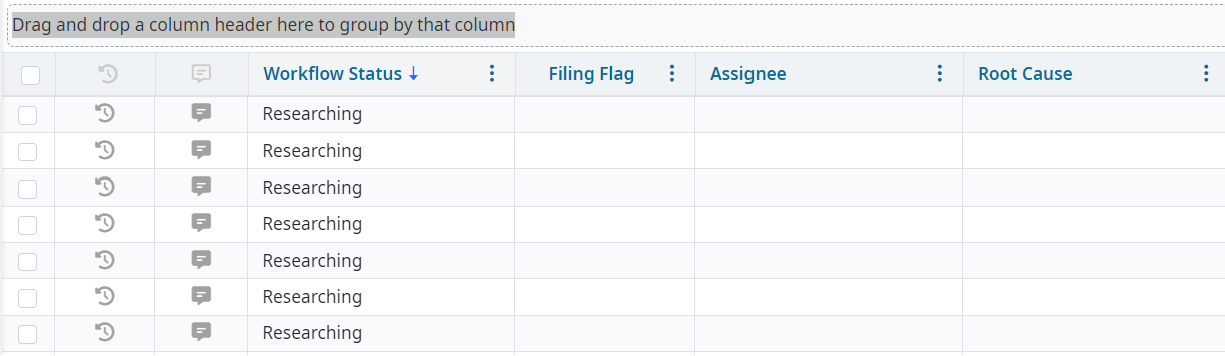
To remove grouping:
- Click the X on each column title in the grouping space.
