Product Reports
You can view, print, and export case results as a customized report in VitalIntegrity.
Available reports
- Assignee Summary - Summary of assignees by active status case count, including average and estimated gross and net impacts.
- Payer Summary - Summary of payers by active status case count, including average and estimated gross and net impacts.
- Root Cause Summary - Summary of root cause indicators by case count (all statuses), including average and estimated gross and net impacts.
- Rule Summary - Summary of rules by active status case count, including average and estimated gross and net impacts.
- Service Area Summary - Summary of service areas by active status case count, including average and estimated gross and net impacts.
- Status Summary - Summary of all statuses by case count, including average and estimated gross and net impacts
- Status Summary by Service Area - Summary of all status case counts grouped by service area, including average and estimated gross and net impacts.
Viewing a report
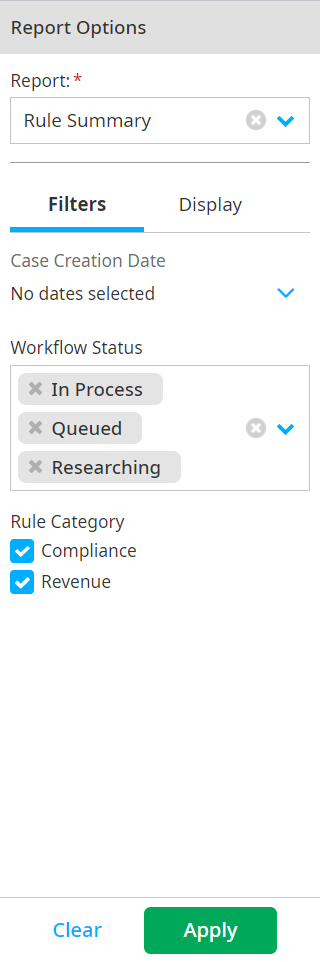
Click Reports on the navigation bar to access the Report Options pane.
Select a report name from the Select Report dropdown.
Select or enter options in the Filters tab.
Select or enter options in the Display tab.
Click Apply.
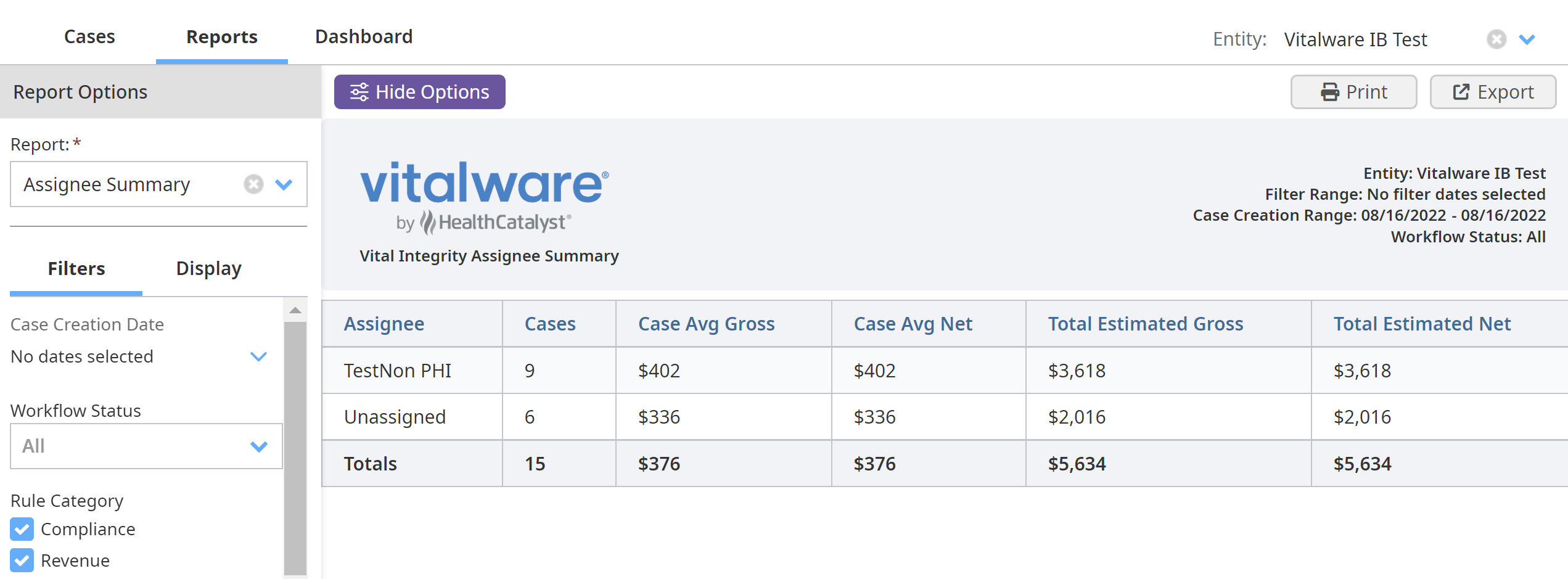
Report headers include the following:
Report Name - The name of the report.
Entity - The organization that owns the report's cases.
Filter Range - The case creation date range you enter under the Case Creation Date section.
Case Creation Range - The case creation date range of the cases that meet your filter criteria and are included in your report results.
Workflow Status - The workflow statuses you enter under the Workflow Status section.
Printing or producing a PDF
- Select Print in the corner of the Reports page.
- Select a printer or select Save as a PDF.
- Select Print or Save.
Exporting a report
- Click Export to download the report.
- Check your local Downloads folder for the report .csv file.