Viewing Case Results
The cases that display on the Case Results table belong to an entity that owns the set of cases. You may have access to one or more entities in your role.
If you only have access to one entity, its default set of cases automatically displays on the Case Results table when you open VitalIntegrity. If you have access to multiple entities, you must select a specific entity to display its default set of cases.
Options on your entity dropdown list are determined by your access rights. You can refresh your screen or sign back in immediately after your screen times out, without losing your entity selection.
To select an entity:
- Click the caret icon in the Entity box.
- Select an entity from the dropdown list to display its cases on the Case Results table.

The Case Results table
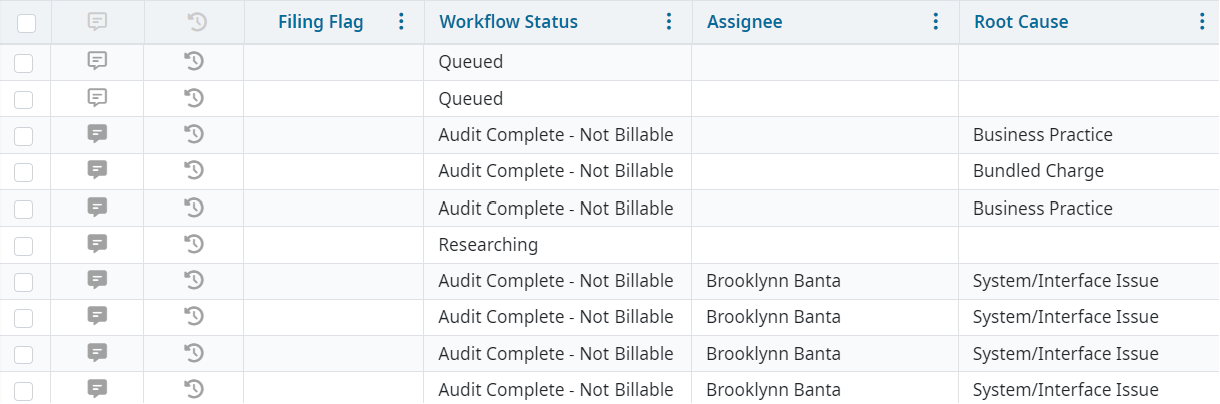
Your default case set consists of all cases assigned to you listed under the Workflow Status column as In Process, Queued, or Researching. If no cases exist, a No records found notification appears.
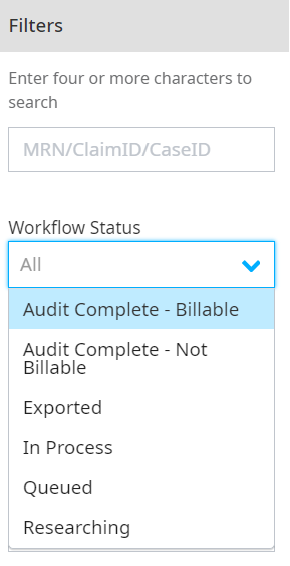
You can view cases assigned to other users or unassigned cases by selecting Clear in the Filters pane to remove your default filter options and enter new filter options.
Cases with the following Workflow Status that can be viewed by all users:
- Audit Complete – Billable
- Audit Complete - Not Billable
- Exported
- Exported
- In Process
- Queued
- Researching
Cases with the following Workflow Status that can only be viewed by Administrative (Admin) users:
- Below Threshold
- Monitoring
- Past Filing Deadline
- Past Review Deadline
- Rebilled
- Rebilling Opportunity
- Resolved
- Vendor Excluded
Case Results table views
You can view your case results in the default table view, or you can switch to a chart view for analysis and reporting. Click the Chart or Table icons to display either view. Your charts always reflect the case set that is present on the Case Results table.
